 |
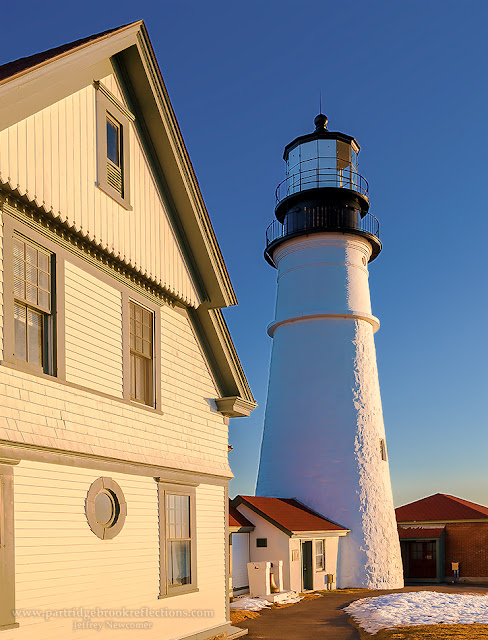
| Dawn at Portland Head Lighthouse, Cape Elizabeth Maine, Plumb |
This week some mandatory
whining, and then a discussion of a great new tool in Lightroom's perspective
control options.
 |
| Full House, On my front proch |
It has been nearly three
weeks since my hip surgery and I am doing about as well as could be hoped. I'm
walking without a cane, mostly, and I've been driving a bit. Still much of my
days are spent hobbling about the house and working on what seems to be an
endless collection of torturous physical therapy exercises. It is all walk,
exercise, ice, repeat. I’m still not ready for long photo shoots, but I can see
the light. Happily, my bird photography
has been simplified by the growth of hatch-lings in the nest on our front porch.
The five are looking ready to burst fort. Also a deer was kind enough to conveniently explore the old drops in my orchard across the road. Almost looks like I'm getting out there!
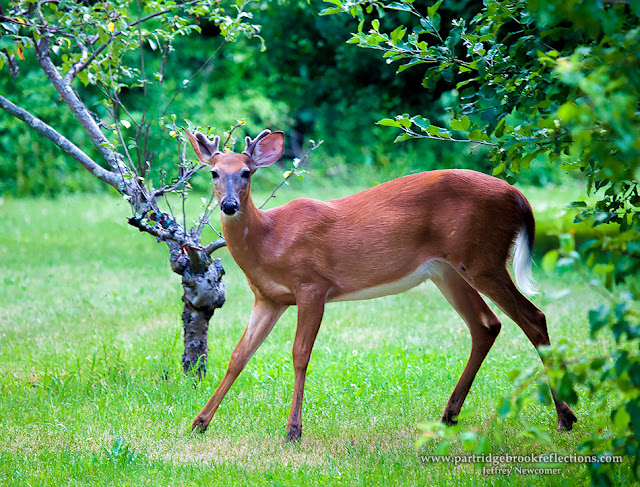 |
| Sympathetic Deer in the Orchard |
What does a landscape
photographer do when he can't get out to the landscape? I can spend time
enhancing old images, but I can only edit in short bursts since I have found
that sitting at the computer is the quickest way to stiffen my hip. About the
only things I have left is to write whinny blogs and to struggle with updates
to my software.
Windows 10
I spent the last week back
and forth with Microsoft Support to try to get my computer upgraded from
Windows 7 to 10. As seen on my wife's laptop, Windows 10 seems to be a
significant improvement over version 8, but it took several long tries to get
the upgrade to work on my desktop. Turns out I had to install 127 updates to
Windows 7 before 10 would install. Now the new operating system seems to be
humming quietly along and hasn't (Yet) caused any problems. On to more updates!
Lightroom and Photoshop CC Updates
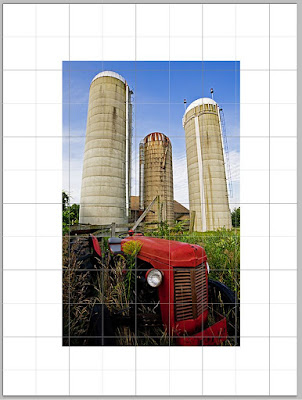 I have been keeping up with
the periodic updates for my Creative Cloud versions of Lightroom and Photoshop.
Some updates contain mostly bug fixes and additional camera support, but
occasionally they include some nifty new toys. An update just came out for
Photoshop with some significant new features, including refinements in the
masking tools, and the introduction of content aware cropping. Today, however,
I want to quickly discuss the refinement in the Upright Tools in the new
version of Lightroom CC, specifically the Improvement in perspective control
with the Guided Upright option.
I have been keeping up with
the periodic updates for my Creative Cloud versions of Lightroom and Photoshop.
Some updates contain mostly bug fixes and additional camera support, but
occasionally they include some nifty new toys. An update just came out for
Photoshop with some significant new features, including refinements in the
masking tools, and the introduction of content aware cropping. Today, however,
I want to quickly discuss the refinement in the Upright Tools in the new
version of Lightroom CC, specifically the Improvement in perspective control
with the Guided Upright option.
The ability to adjust
perspective has been a powerful tool in Photoshop for some time. Most often
this has to do with correcting  the key-stoning effect that occurs when the
camera is angled upward. With key-stomping, subjects such as buildings appear
to be leaning away from the camera. I discussed the use of Photoshop’s Skew Tool in a previous article, but more recently I have been doing most of my
perspective correction with Lightroom’s Upright controls. This is another
example of Lightroom capturing some of the editing power of Photoshop, but as
is true in other areas, the Lightroom tools lacked some of Photoshop’s ability
to fine tune the changes. At least until now.
the key-stoning effect that occurs when the
camera is angled upward. With key-stomping, subjects such as buildings appear
to be leaning away from the camera. I discussed the use of Photoshop’s Skew Tool in a previous article, but more recently I have been doing most of my
perspective correction with Lightroom’s Upright controls. This is another
example of Lightroom capturing some of the editing power of Photoshop, but as
is true in other areas, the Lightroom tools lacked some of Photoshop’s ability
to fine tune the changes. At least until now.
Upright
 Within Lightroom’s’ Upright
panel there are a number of automatic adjustments which often do a surprisingly
good job correcting problems with perspective. The tools include an Auto
adjustment, which tries to find a balanced solution, while Vertical and Level
adjustments focus on one axis. The Full adjustment tries to get everything
perfect, often with bizarre results. These automatic, control often work well
but, as is true of most “automatic” solutions, they don’t always come up with
the best result.
Within Lightroom’s’ Upright
panel there are a number of automatic adjustments which often do a surprisingly
good job correcting problems with perspective. The tools include an Auto
adjustment, which tries to find a balanced solution, while Vertical and Level
adjustments focus on one axis. The Full adjustment tries to get everything
perfect, often with bizarre results. These automatic, control often work well
but, as is true of most “automatic” solutions, they don’t always come up with
the best result.
 The problem with the Upright controls in older versions of
Lightroom is that there was no easy way to make manual adjustments when the
automatic controls failed. That is until the new Transformation panel in the
latest version of Lightroom CC, which adds the “Guided” adjustment option.
Sadly, this new control is found in the latest update of Lightroom CC and is
not available as yet in the non-subscription version.
The problem with the Upright controls in older versions of
Lightroom is that there was no easy way to make manual adjustments when the
automatic controls failed. That is until the new Transformation panel in the
latest version of Lightroom CC, which adds the “Guided” adjustment option.
Sadly, this new control is found in the latest update of Lightroom CC and is
not available as yet in the non-subscription version.
First Do Your Best in the Camera
Perspective corrections in
Lightroom and Photoshop can be remarkably effective, but, especially when the
corrections must be drastic, they can introduce obvious unnatural distortions.
The best way to avoid problems is to minimize how much adjustment we must apply
to the image. Of course shooting with an adjustable view camera or with a
tilt-shift lens can reduce or eliminate the key-stoning effect but these can be
cumbersome and expensive options. Key-stoning can be minimized by raising the camera
and thus reducing the need to angle up to the subject. Climbing a tree or using
a leader or chair can make a difference, but I often find that merely holding
the camera above my head can be a significant help. Once you’ve done everything
to reduce distortion within the camera, it is time to use the magic in
Lightroom or Photoshop.
My first step is to select
the Lens Profile and Chromatic Aberration corrections in the Lens Adjustment
Panel. Chromatic Aberration is the color banding that occurs along edges with
sharp contrast, especially in the periphery of images. If left uncorrected this
banding can become more noticeable as perspective controls are applied.
The Transformation Panel is
next in Lightroom’s workflow and it is here that the real magic occurs. When I
am dealing with an image that contains the converging lines of “key-stoning”, I
typically start by trying the various automatic settings. In situations such as
my image of Michigan Avenue in Chicago, the Auto or Vertical adjustments often
work best, but when I need better control I will go to the Guided adjustment.
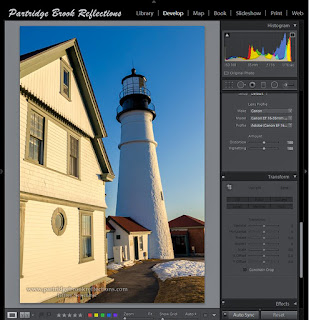
Guided Upright
 |
| Leaning Portland Head Light |
The Guided Upright Adjustment
is selected by clicking on the “Guided” button or the tool icon in the upper
left of the panel and bringing it into the image. To set either a horizontal or
vertical upright adjustment, two lines need to be drawn using the tool along
portions of the image which should be aligned along the horizontal or vertical
axis.
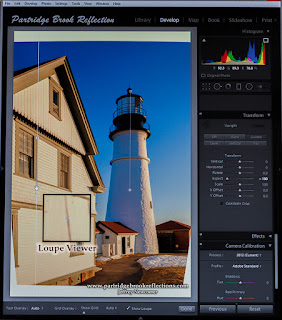 |
| Level Guided Upright |
The guides are set and then drawn along the axis with the help of a
magnifying loop. The Upright adjustment is triggered when the second line is
complete, but after the initial adjustment, the effect can be fine tune with
movement of the lines. Adjustment along a single axis may be sufficient for
many images, but, if needed a second set of lines may be placed to adjust the
other axis.
The Second City
 |
| Michigan Avenue Chicago |
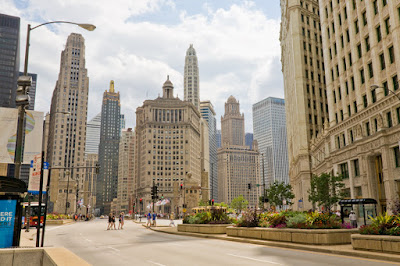
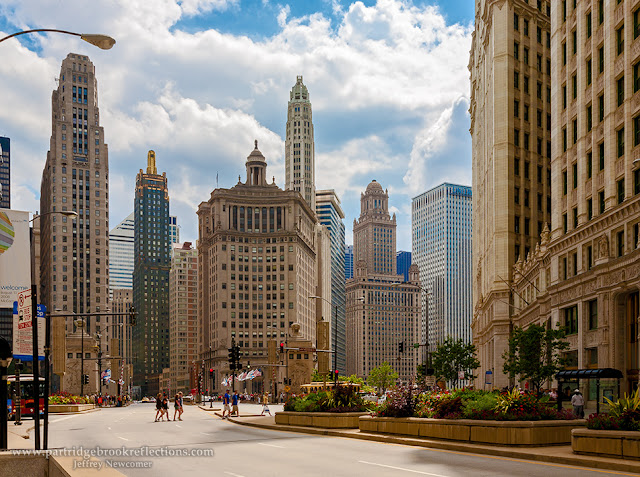
My picture of Michigan Avenue
in Chicago had the typical key stoning, but, with Guided Upright, I was able to
correct the distortion with two vertical lines drawn along portions of the
buildings. With adjustments such as this, portions of the image will be lost on
both sides. When you anticipate that perspective adjustments will be needed it
is important to enlarge the original framing to provide room for the inevitable
cropping that will be required.
 Key-stoning can also occur in
landscape shots especially when shooting at tall trees. The sense of the forest
malevolently leaning in can create an ominous mood, but when desired this can
be corrected easily with the Upright tools.
Key-stoning can also occur in
landscape shots especially when shooting at tall trees. The sense of the forest
malevolently leaning in can create an ominous mood, but when desired this can
be corrected easily with the Upright tools.
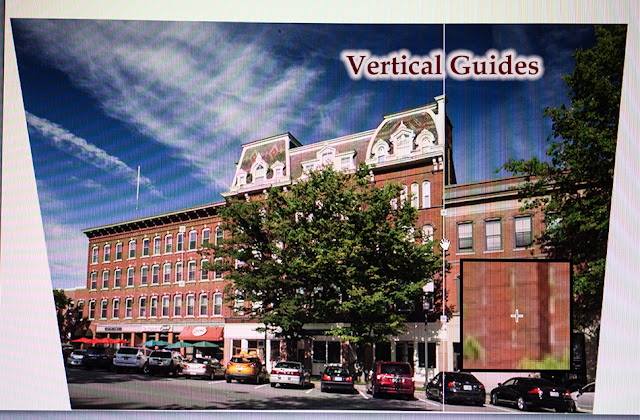
Vertical & Level Guides
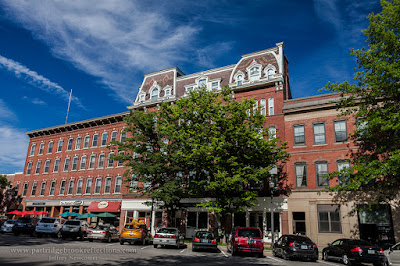 |
| Original Image |
Using the Guided Upright tool
to correct both Vertical and Horizontal distortion scan be effective, but
trying to control two axis’s at once can stretch the image in ways that appear
unnatural. I shot an image of an old business block in Keene New Hampshire with
the intention of creating a challenge for the upright tools. I framed the
picture from the side and looking up. I got as low as my bionic hip would
allow.
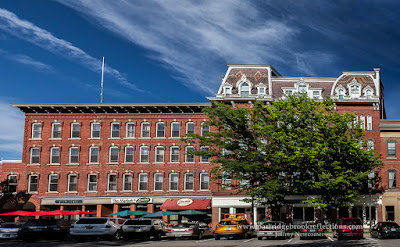 |
| Vertical & Level Guides |
Using Guided Upright, I applied vertical and horizontal guides, I and
was able to get the structure to square up reasonably well, but it was
accomplished with considerable stretching a squishing of pixels. Just notice
the difference in the sizes of the cars parked from right to left. I think that
by stopping at the vertical correction, the building appeared more natural,
balanced.
 Often lesser amounts of
perspective control are best, but at least with Lightroom’s Transformation
options, experimentation is easy, quick and, as always, nondestructive. Take a
look at all of the upright adjustments applied to my shot looking up at the
spire of Keene’s United Church of Christ Church. The two axis guided adjustment
may be the closest to fully square, but I may prefer the original image with
its dramatic angles.
Often lesser amounts of
perspective control are best, but at least with Lightroom’s Transformation
options, experimentation is easy, quick and, as always, nondestructive. Take a
look at all of the upright adjustments applied to my shot looking up at the
spire of Keene’s United Church of Christ Church. The two axis guided adjustment
may be the closest to fully square, but I may prefer the original image with
its dramatic angles.
As is true of all the new
tools in Lightroom and Photoshop, the Guided Upright option will find its
proper place in your workflow, but only after much enjoyable experimentation
and many, fortunately reversible, mistakes. So upgrade your Lightroom CC and
start making those glorious disasters.

 There are two types of distortion.
Wide angle lenses can cause the appearance of swelling out from the
middle of the image, called Barrel Distortion.
This warping is often associated vignetting, a darkening at the corners.
Conversely, looking at more distant
subjects with a telephoto lens can result in an inward bending of lines on the
edges, called pincushion distortion.
There are two types of distortion.
Wide angle lenses can cause the appearance of swelling out from the
middle of the image, called Barrel Distortion.
This warping is often associated vignetting, a darkening at the corners.
Conversely, looking at more distant
subjects with a telephoto lens can result in an inward bending of lines on the
edges, called pincushion distortion. Recently, I was shooting along the waterfront in Rockport Massachusetts. I
was especially attracted by the interesting detail in many of the Lobster shacks;
colorful buoys, ropes and weathered doors.
I loved my angle on this shack, but I noticed that by using a 67mm focal
length the lines of the distant door showed considerable pin cushioning. The result was some post-processing correction
and an excuse for another blog article
Recently, I was shooting along the waterfront in Rockport Massachusetts. I
was especially attracted by the interesting detail in many of the Lobster shacks;
colorful buoys, ropes and weathered doors.
I loved my angle on this shack, but I noticed that by using a 67mm focal
length the lines of the distant door showed considerable pin cushioning. The result was some post-processing correction
and an excuse for another blog article


 The automatic profile adjustment made a marked improvement in the pin cushioning
of the door, but it wasn’t quite perfect. The door edge still had a definite curve. I went to the Distortion slider and found
that a full +200 correction led to a better result. For Lightroom and Photoshop automatic
adjustments can work great, particularly for lens profiles, but sometimes they
are just a good place to start.
The automatic profile adjustment made a marked improvement in the pin cushioning
of the door, but it wasn’t quite perfect. The door edge still had a definite curve. I went to the Distortion slider and found
that a full +200 correction led to a better result. For Lightroom and Photoshop automatic
adjustments can work great, particularly for lens profiles, but sometimes they
are just a good place to start. A wide-angle close-up of a plain brick wall gives a nice view of Barrel Distortion
and for this I must thank the imposing façade of Dick’s Sporting Goods in Keene
New Hampshire. A straight-on view with
my 16mm lens clearly shows barrel distortion and edge vignetting. In this case the built-in Profile Correction nicely
fixes the problems without any need for further adjustments.
A wide-angle close-up of a plain brick wall gives a nice view of Barrel Distortion
and for this I must thank the imposing façade of Dick’s Sporting Goods in Keene
New Hampshire. A straight-on view with
my 16mm lens clearly shows barrel distortion and edge vignetting. In this case the built-in Profile Correction nicely
fixes the problems without any need for further adjustments.
 Maple Trunk